
Fast Flags are JSON settings that change how the Roblox client behaves, and Bloxstrap gives you a built-in editor to manage them. With the right flags you can raise the FPS cap, fix display scaling, or enable exclusive fullscreen. But there is a catch in 2026: Roblox now only honors a small allowlist of flags, and newer Bloxstrap versions have disabled the flag editor entirely. This guide shows you what Fast Flags are, how they worked, which ones still matter, and how to stay safe.
Bloxstrap itself is a free, open-source bootstrapper for Roblox on Windows. Instead of launching Roblox the normal way, it adds useful extras: an FPS unlocker, custom mods, multi-instance support, and, in older versions, the Fast Flag editor this guide covers.
What Are Fast Flags?
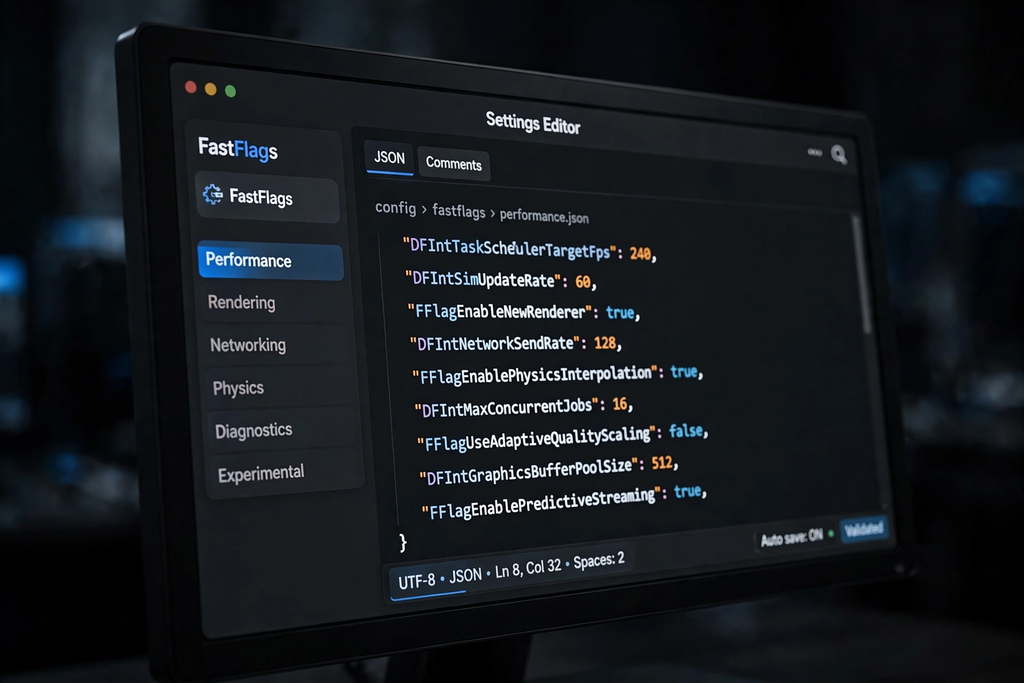
Fast Flags (FFlags) are simple key-value settings, written in JSON, that switch Roblox client features on or off or tune their values. Think of them as hidden settings menus. Each flag has a name like DFIntTaskSchedulerTargetFps and a value like 144. When Roblox starts, it reads these flags and adjusts itself accordingly.
They were originally internal tools for Roblox engineers to test features gradually. Players discovered them, and bootstrappers like Bloxstrap made them easy to use by applying them automatically every time Roblox launches, so you never have to re-enter them after an update.
What Can Fast Flags Do?
Fast Flags can change graphics quality, the framerate cap, fullscreen behavior, and display scaling. Here are the categories players care about most:
• Framerate cap: Roblox normally caps at 60 FPS. The DFIntTaskSchedulerTargetFps flag raises that cap, which is how FPS unlockers work.
• Graphics tweaks: flags that adjust texture quality, lighting, shadows, and rendering distance for more FPS on weak PCs.
• Exclusive fullscreen: FFlagHandleAltEnterFullscreenManually lets you use true exclusive fullscreen with Alt + Enter, which can reduce input lag.
• DPI scaling fix: DFFlagDisableDPIScale fixes blurry or downscaled rendering on high-DPI displays (for example 4K screens with 150%+ scaling).
Keep expectations realistic: flags cannot make a weak GPU powerful. They remove artificial limits and let your hardware do what it can already do.
How to Use Fast Flags in Bloxstrap
In Bloxstrap versions with the editor enabled, you open the FastFlag editor, import your flags as JSON, save, and launch Roblox normally. Bloxstrap then applies your flags on every launch automatically.
The steps:
1. Download Bloxstrap only from its official GitHub page (bloxstraplabs). Never download it from random reupload sites.
2. Open Bloxstrap and find FastFlags in the menu.
3. Open the Fast Flag Editor. You will see a warning telling you to be careful. Read it, then continue.
4. Click Add New, then Import JSON.
5. Paste your flags JSON into the box and click OK.
6. Click Save in the top-right corner.
7. Launch Roblox through Bloxstrap as normal. Your flags are now active and will persist across Roblox updates.
To remove flags later, reopen the editor, delete the entries, and save. If Roblox ever behaves strangely after a change, resetting the flags to default is the first thing to try.
Useful Fast Flags Worth Knowing
These are the well-documented flags from Bloxstrap’s own wiki. Whether each one still works depends on Roblox’s allowlist (see the next section), so treat this as reference, not gospel.
DFIntTaskSchedulerTargetFps: Raise the FPS Cap
This is the famous one. Roblox caps rendering at 60 FPS by default. Setting this flag higher raises the cap. Bloxstrap’s built-in FPS unlocker uses this same flag behind the scenes, so most players never need to set it by hand.
{
“DFIntTaskSchedulerTargetFps”: 144
}
Set it to your monitor’s refresh rate (144, 165, 240). Setting an extremely high value just uncaps it. If you notice weird rendering or input behavior, set it back to 0 to restore the default.
FFlagHandleAltEnterFullscreenManually: Exclusive Fullscreen
This enables true exclusive fullscreen with Alt + Enter instead of F11 when using Direct3D. Bloxstrap enables this preset by default. Note it can behave oddly for some players: it may cap itself to its own framerate (disabling VSync in GPU settings usually fixes that), and the cursor can occasionally misbehave.
DFFlagDisableDPIScale: Fix Blurry Rendering on High-DPI Screens
If your Windows display scaling is above 100%, Roblox can render at a lower quality than your screen supports. This flag disables that downscaling. Skip it if you care more about battery life or raw performance than sharpness.
The 2026 Reality Check: Roblox’s Flag Allowlist
Here is the honest part: Roblox now enforces a strict allowlist, and most Fast Flags no longer do anything. Only flags on Roblox’s approved list take effect. Flags outside the list are silently ignored, no matter what any YouTube video promises.
Because of this, Bloxstrap v2.10.0 and newer disabled the Fast Flag editor. If your Bloxstrap has no editor, that is why. Older versions still show it, but the flags you set may simply do nothing on current Roblox builds.
What this means for you:
• Do not pay for, or trust, “500+ FPS” flag packs. Most of their flags are dead.
• Test one flag at a time and check whether it actually changes anything before adding more.
• Bloxstrap’s built-in features (FPS unlocker, etc.) remain the reliable path. They use the flags that still work.
Are Fast Flags Safe? Can You Get Banned?
Fast Flags themselves are client settings, not cheats, but Roblox treats unauthorized client modification seriously. Flags on the allowlist are fine. Messing with flags outside it has no effect today, but community reports have long warned that certain flags can be flagged in specific games. The safe rules are simple:
• Only use flags you understand, from sources you trust (Bloxstrap’s wiki, well-known community lists).
• Never use flags that promise gameplay advantages like speed, fly, or ESP. Those are cheats, not tweaks.
• Download Bloxstrap only from its official GitHub. Fake downloads bundled with malware are the real danger.
• If a game kicks or warns you after a flag change, remove the flags and rejoin clean.
When in doubt, stick to Bloxstrap’s built-in toggles instead of hand-editing flags. They cover what most players actually need.
Common Fast Flag Problems and Fixes
Flags Have No Effect
This is the most common “problem” in 2026, and it is usually not a bug. The flag is probably outside Roblox’s allowlist. Check it against current community lists, and accept that many old FPS-pack flags are dead.
Roblox Behaves Strangely After a Change
Remove the flags you just added, save, and relaunch. If the problem disappears, re-add them one at a time to find the culprit.
The Fast Flag Editor Is Missing
You are on Bloxstrap v2.10.0 or newer, where the editor is disabled. Use the built-in settings (like the FPS unlocker) instead.
Bloxstrap Won’t Launch Roblox After Editing
A malformed JSON entry is the usual cause. Reopen the editor, check for missing commas or quotes, fix them, and save again.
Tips for Using Fast Flags Wisely
• Change one flag at a time so you know what actually helped.
• Keep a backup of flags that work for you, so you can restore them quickly.
• Match the FPS cap to your monitor’s refresh rate. Higher than that buys you nothing visible.
• Pair flags with real optimizations: close background apps, update GPU drivers, and use Game Mode on Windows.
• Recheck your flags after big Roblox updates. Roblox can and does retire flags.
Frequently Asked Questions
What are Bloxstrap Fast Flags?
JSON key-value settings that change Roblox client behavior, managed through Bloxstrap’s Fast Flag editor so they apply automatically on every launch.
Do Fast Flags still work in 2026?
Only the ones on Roblox’s allowlist. Most old performance flags are now ignored, and Bloxstrap v2.10.0+ removed the editor for this reason.
What is the Fast Flag for unlocking FPS?
DFIntTaskSchedulerTargetFps. Set it to your monitor’s refresh rate. Bloxstrap’s built-in FPS unlocker already handles this, so manual editing is rarely needed.
Are Fast Flags bannable?
Allowlisted flags used as intended are client settings, not cheats. But unauthorized client modification can lead to bans, so avoid flags promising gameplay advantages and stick to trusted sources.
Why is there no Fast Flag editor in my Bloxstrap?
Bloxstrap disabled the editor in v2.10.0 and newer because Roblox’s allowlist made most flags ineffective. Use the built-in settings instead.
Do I need Bloxstrap to use Fast Flags?
No, but it is the easiest way. Without a bootstrapper you must place the flags file manually and reapply it after every Roblox update.
Where do I download Bloxstrap safely?
Only from the official bloxstraplabs GitHub page. Never trust reuploads on random sites, which are a common malware vector.
Conclusion
Bloxstrap Fast Flags were once the go-to way to squeeze more performance out of Roblox, and the core ideas still apply: raise the FPS cap to match your monitor, fix scaling issues, and use exclusive fullscreen where it helps. But the 2026 landscape is different. Roblox’s allowlist killed most of the old flag packs, and newer Bloxstrap versions dropped the editor because of it.
The smart approach today: use Bloxstrap’s built-in toggles, keep your flags minimal and allowlisted, and spend the time you save on the optimizations that never get patched out, like drivers, background apps, and in-game settings.